

Boast Knowledge Base
How can I assign a form to a staff member?
- Add a staff member if you haven't already.
- Create or edit a form
- Add a "Staff" field.
- Set the Field Visibility to Hidden.
- Select the desired staff member in the field on the left and click Set Default Value.
- Save the form.

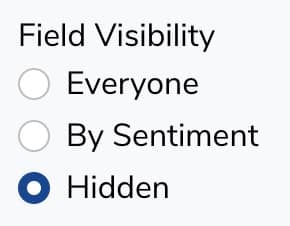
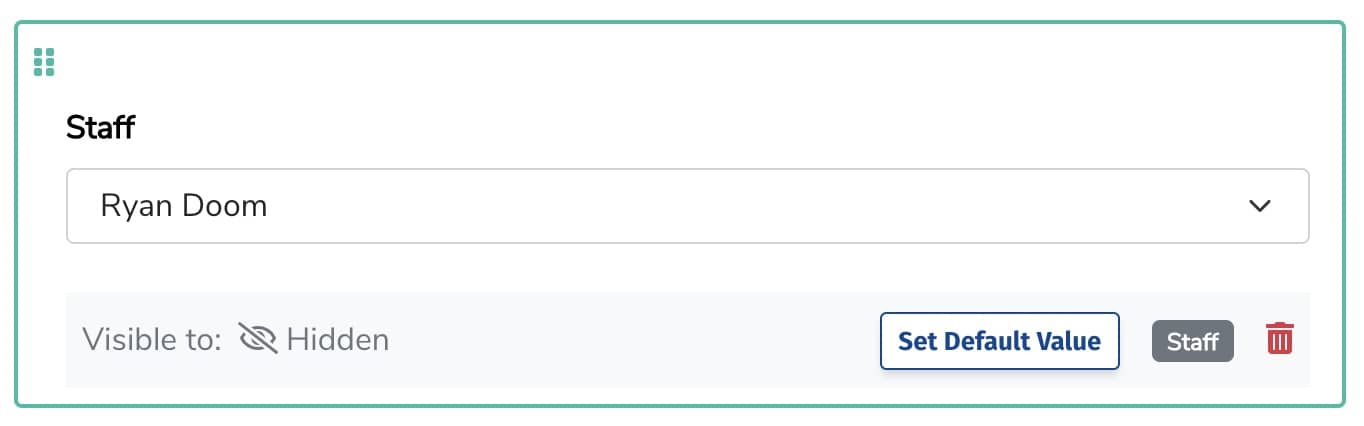
Now when that form is submitted, the response will automatically be assigned to the selected staff member. That staff member will be able to see the responses assigned to them when they log in to Boast.
One tool with everything you need to leverage social proof to grow your business.
Meet the companies collecting video testimonials with Boast


Chicago Helicopter Experience Case Study
Chicago Helicopter Experience provides breathtaking tours of the Chicago area.

CommonSense American Case Study
CommonSense American seeks to bridge the partisan divide between everyday citizens and bring everyone to the table to make positive change.

Consulting Success Case Study
Consulting Success gives business consultants powerful strategies to win more clients and improve their overall business efficiency.

Family Chiropractic Center for Wellness Case Study
Family Chiropractic Center For Wellness provides a full range of health and wellness treatments in four convenient Florida offices.

GoForClose Case Study
GoForClose empowers real estate investors to focus on sales and closing deals by providing a specialized team and marketing platform at an affordable rate.

Growth Marketing Pro Case Study
Growth Marketing Pro helps business owners and startups develop powerful growth marketing strategies.

National Grid Case Study
National Grid is a British and US multinational electricity and gas utility company with a market cap of 47 billion dollars.

North Face Endurance Challenge Case Study
The North Face Endurance Challenge Series is a trail race series in six locations across North America.

OneTrust Home Loans Case Study
OneTrust Home Loans serves borrowers and their financing needs through an efficient, transparent, and technology-driven loan process.

Pure Energy Window Company Case Study
Pure Energy Window Company is a window installation and replacement company specializing in energy-efficient windows.

Republican Voters Against Trump Case Study
Republican Voters Against Trump seeks to cross political lines by collecting and displaying testimonial videos from self-identifying Republican voters who don’t support Donald Trump.

Savvy + Co Real Estate Case Study
Savvy + Co Real Estate is a full-service real estate firm serving clients in Charlotte, North Carolina

Sedera Case Study
Inspired by the modern sharing economy, Sedera centers on Member-to-Member sharing, basically people helping people.

Seth Godin Case Study
Seth Godin is a marketing expert promoting books and other resources.

Sonic Relief Case Study
Sonic Relief™ provides personal therapeutic ultrasound devices for pain management.

Vivir al Máximo Case Study
Vivir al Máximo sells different online courses to help students create a life on their own terms.
Who Uses Boast?
Boast was originally designed to help B2B companies improve their processes for collecting testimonials and showcasing them on their websites, but it didn’t take long to realize that the Boast apps have far more potential. Check out some of the ways people are using below.

Software Companies
Boast helps software companies collect feedback from customers to improve product features and increase sales.

Creators & Consultants
Boast offers a simplified testimonial process so you can build a library of social proof to showcase on your website, social media, and ads.

Non-profit, Association & Advocacy
Boast helps non-profit, association, and advocacy organizations set up feedback campaigns to get a pulse on their community.

Financial Services
Boast offers everything you need to build a library of praise to showcase on your website, social media, and ads.

Agencies
Boast assists growth-focused agencies with an all-in-one platform to collect, manage, and share video testimonials.

Real Estate
Realtors make it or break it by cultivating quality, genuine customer testimonials. Boast offers a way for Realtors to capture meaningful client relationships and build new ones.

Health & Wellness
Boast helps health and wellness product brands, software companies, service providers, and coaches leverage video testimonials and customer reviews to increase sales.

Coaches & Consultants
Request and collect video testimonials for your coaching business to improve credibility with your audience and sell more.