

Boast Knowledge Base
How do I edit videos in Boast?
To edit a video:
- Edit the response.
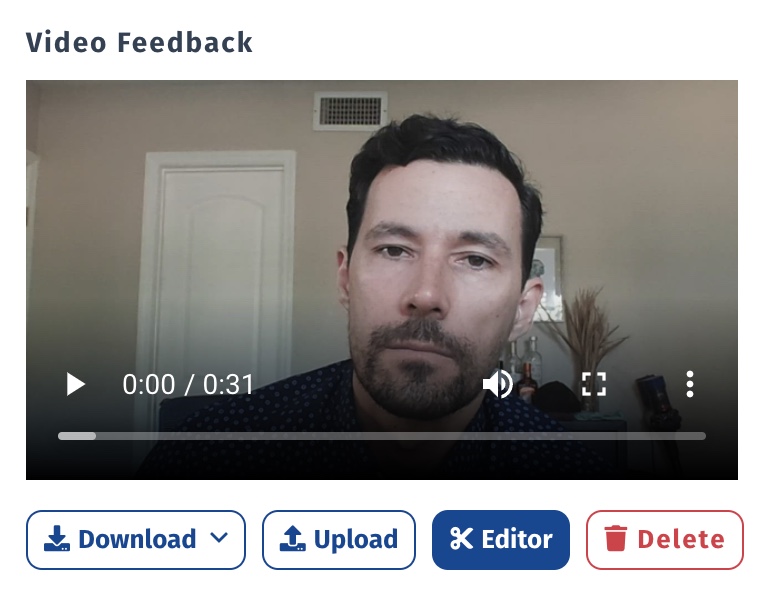
- Under the video you'd like to edit, click Editor.
- Wait for the editor to load. If it it a long video, this may take a minute.
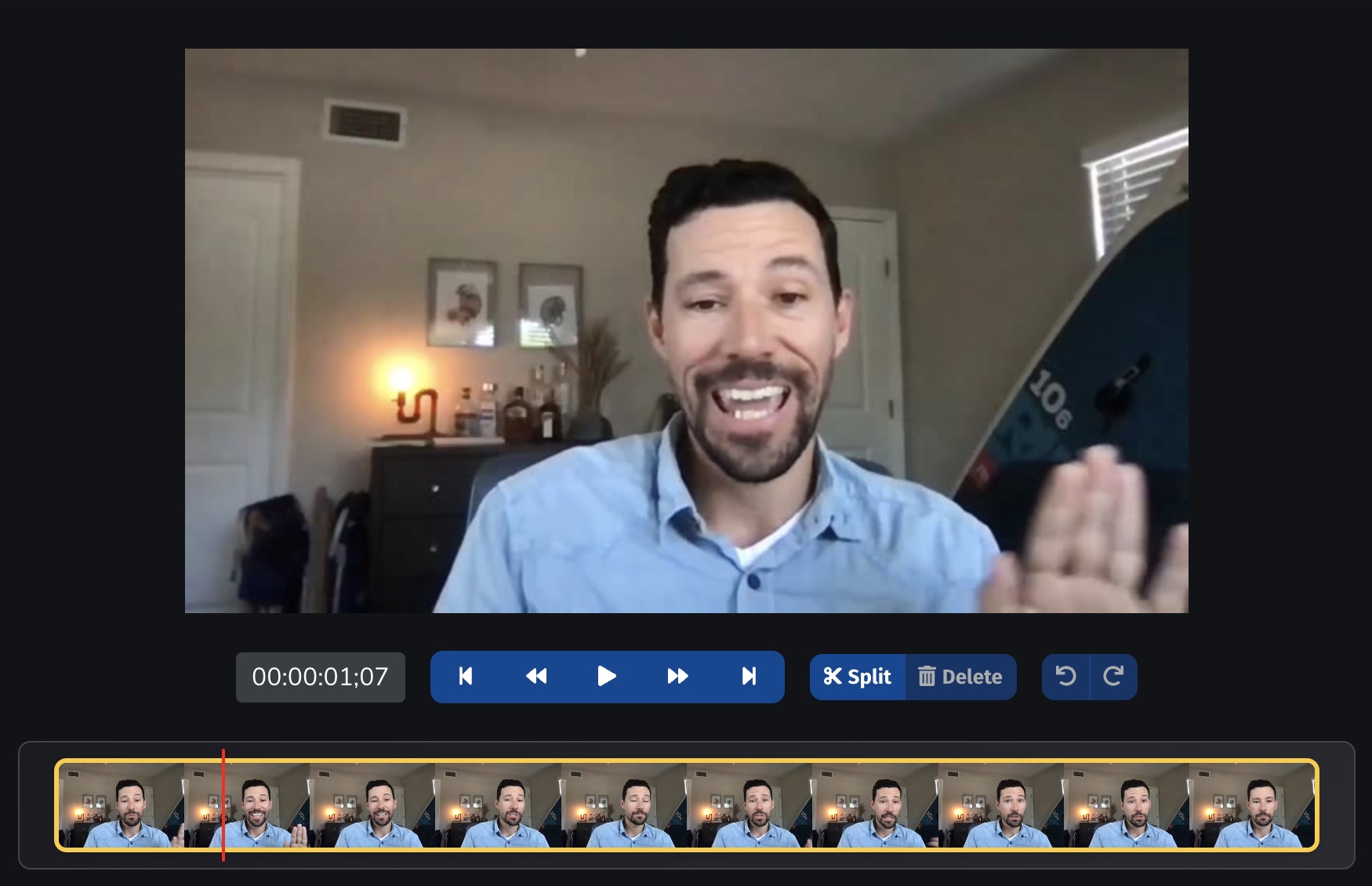
Timeline
The timeline shows you a preview of your video.

The vertical red line denotes your current location in the video.
Play Controls

The current timestamp shows on the left.
In the blue bar, the controls are as follows, from left to right:
- Move playhead back to the beginning of the video
- Go back .25 seconds
- Play / pause
- Go forward .25 seconds
- Move playhead to the end of the video
Split
Click Split to split your video into multiple segments. The video will split at the red playhead line.
Delete
Click Delete to remove a clip from your video. The currently selected clip (highlighted in yellow) will be deleted.

Rearrange
Click and drag clips on the timeline to rearrange them.
Shortcuts
s = split
backspace = delete
left arrow = back .25s
right arrow = forward .25s
spacebar = play/pause
undo = control+z
One tool with everything you need to leverage social proof to grow your business.
Meet the companies collecting video testimonials with Boast


Chicago Helicopter Experience Case Study

CommonSense American Case Study

Consulting Success Case Study

Family Chiropractic Center for Wellness Case Study

GoForClose Case Study

Growth Marketing Pro Case Study

National Grid Case Study

North Face Endurance Challenge Case Study

OneTrust Home Loans Case Study

Pure Energy Window Company Case Study

Republican Voters Against Trump Case Study

Savvy + Co Real Estate Case Study

Sedera Case Study

Seth Godin Case Study

Sonic Relief Case Study

Vivir al Máximo Case Study
Who Uses Boast?
Boast was originally designed to help B2B companies improve their processes for collecting testimonials and showcasing them on their websites, but it didn’t take long to realize that the Boast apps have far more potential. Check out some of the ways people are using below.

Agencies

Real Estate

Health & Wellness

Software Companies

Creators & Consultants

Non-profit, Association & Advocacy

Financial Services