

Boast Knowledge Base
What widget options are available?
To create a new widget:
- Navigate to the Widgets tab.
- Click New Widget in the top right corner.
- Adjust the widget options as desired.

Widget Options
Name
Give your widget a title. This is for internal purposes only.

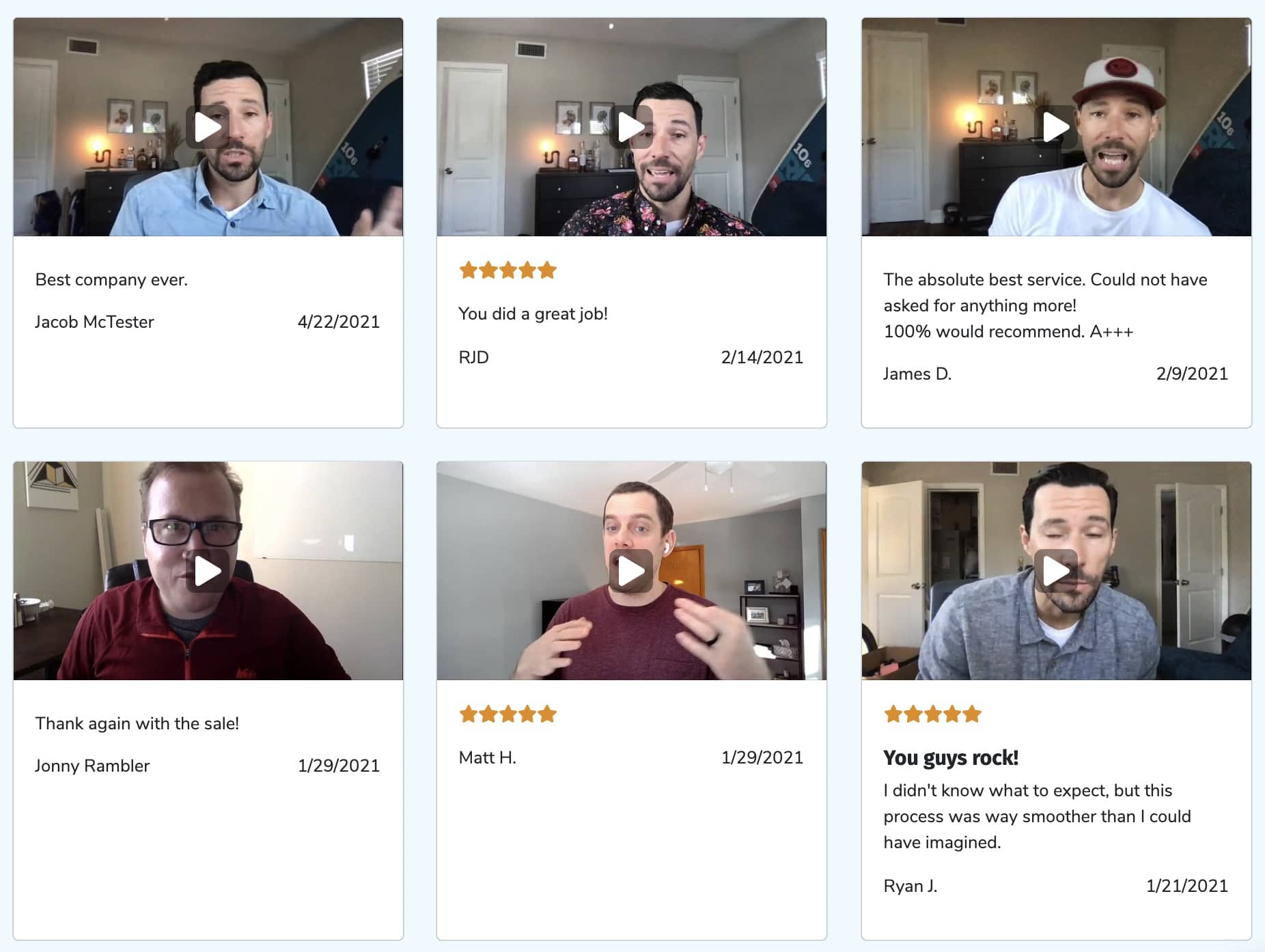
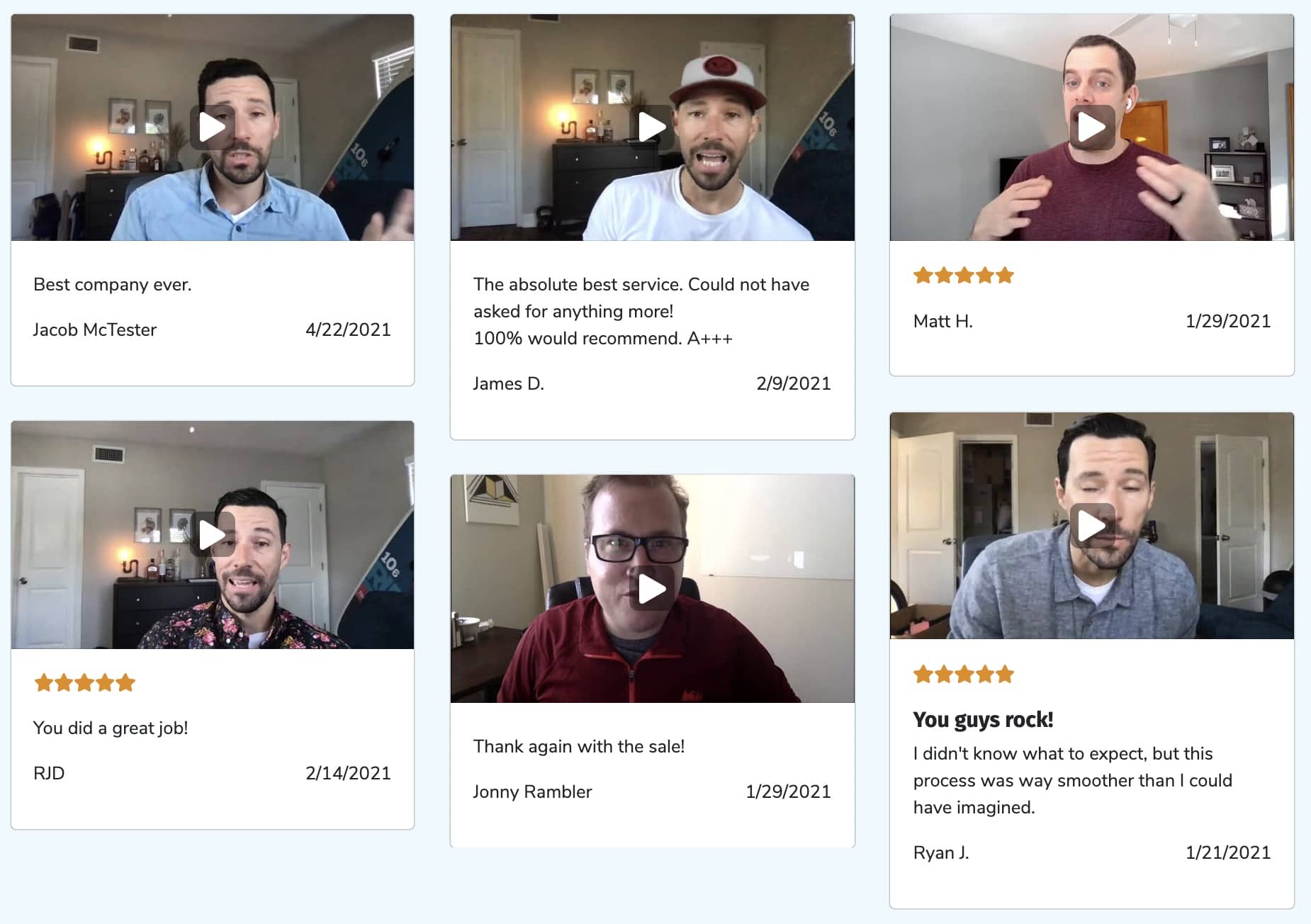
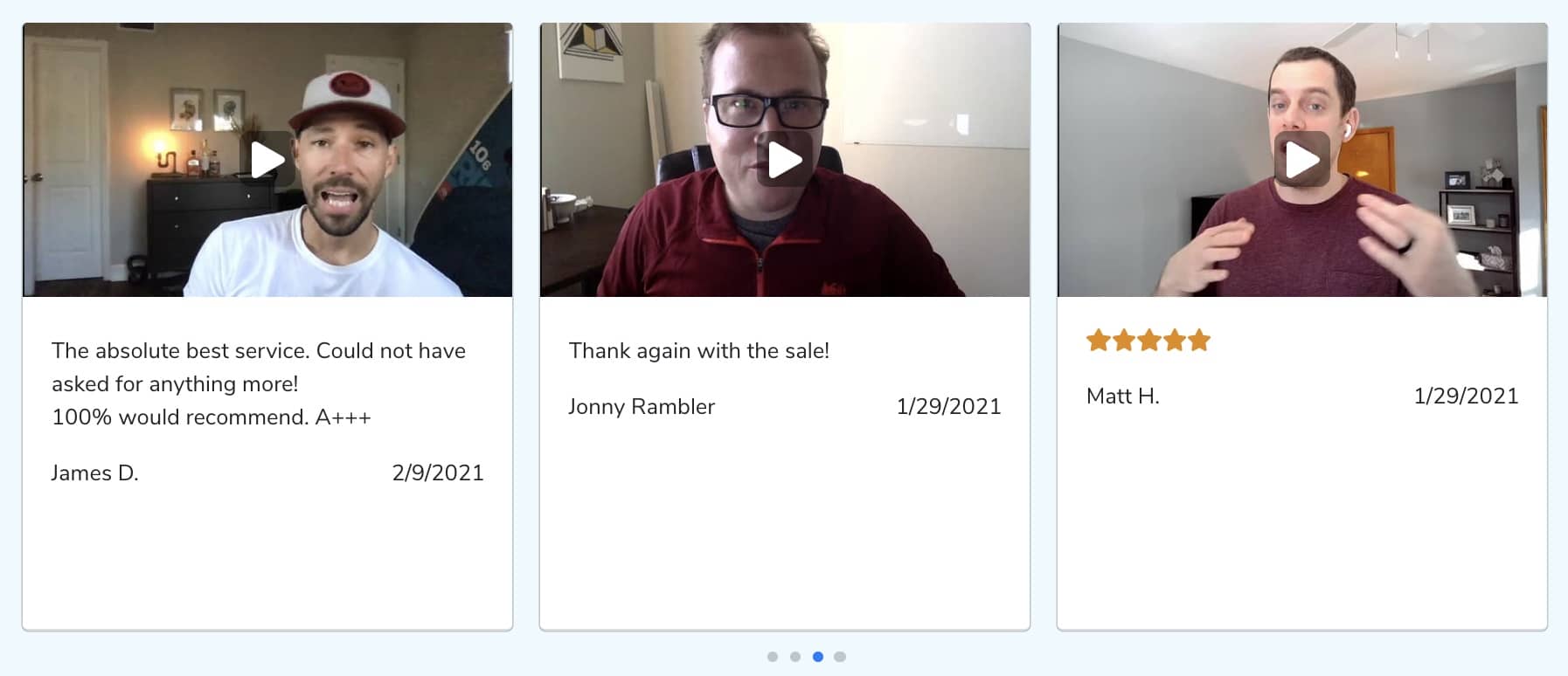
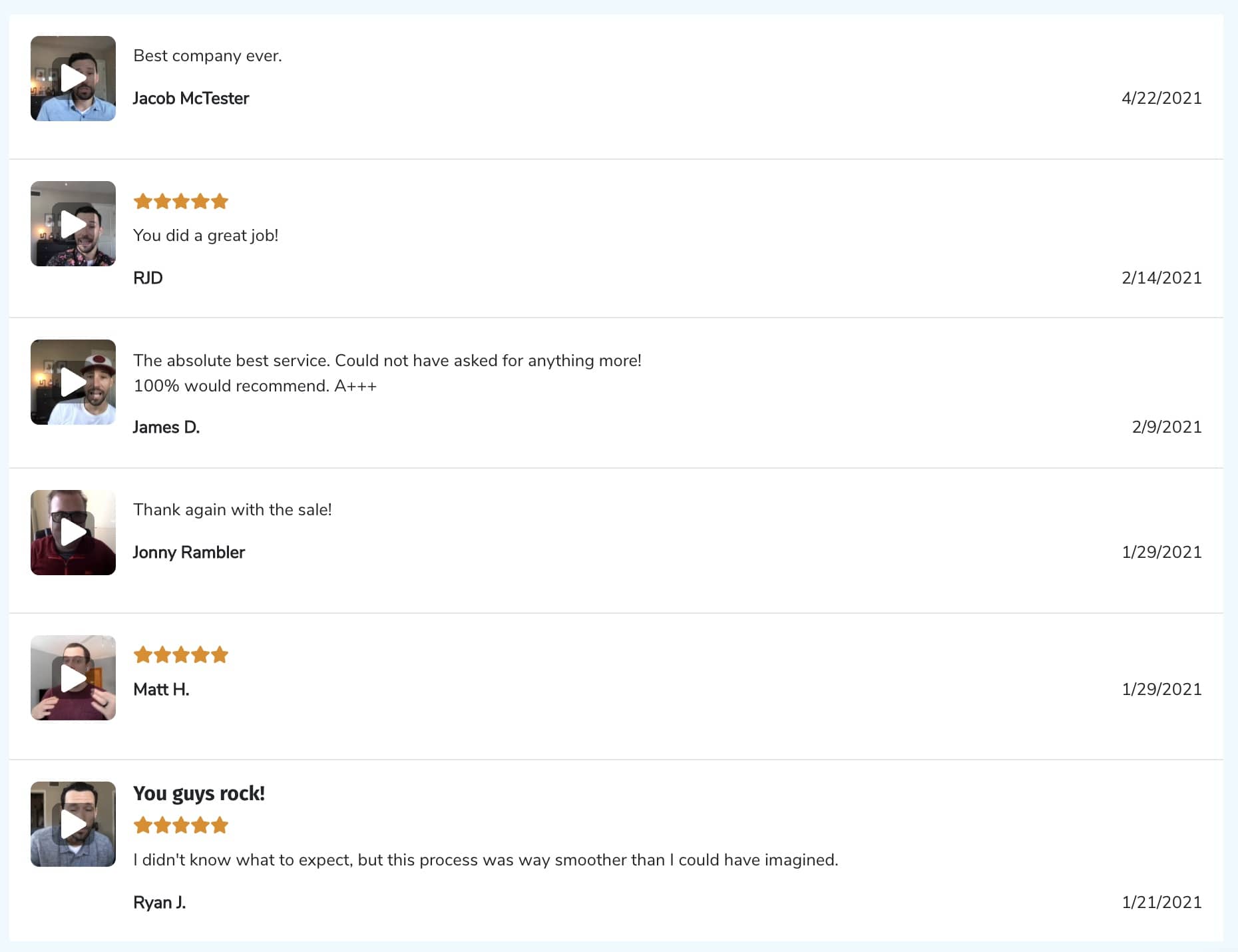
Layout
How your responses are displayed.

Options:
- Cards - Grid
- Cards - Full
- Cards - Carousel
- List
- Full Width Column
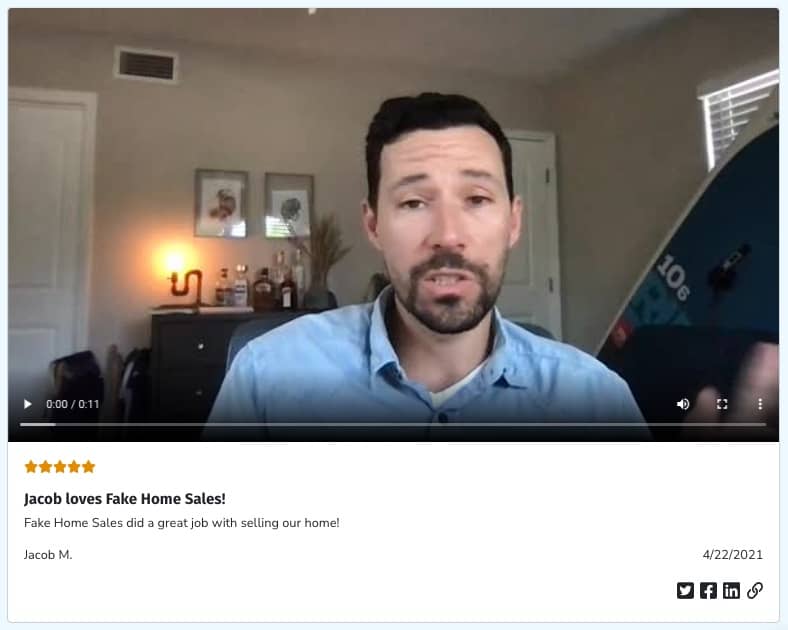
Display
Style
Change the colors of your widget.
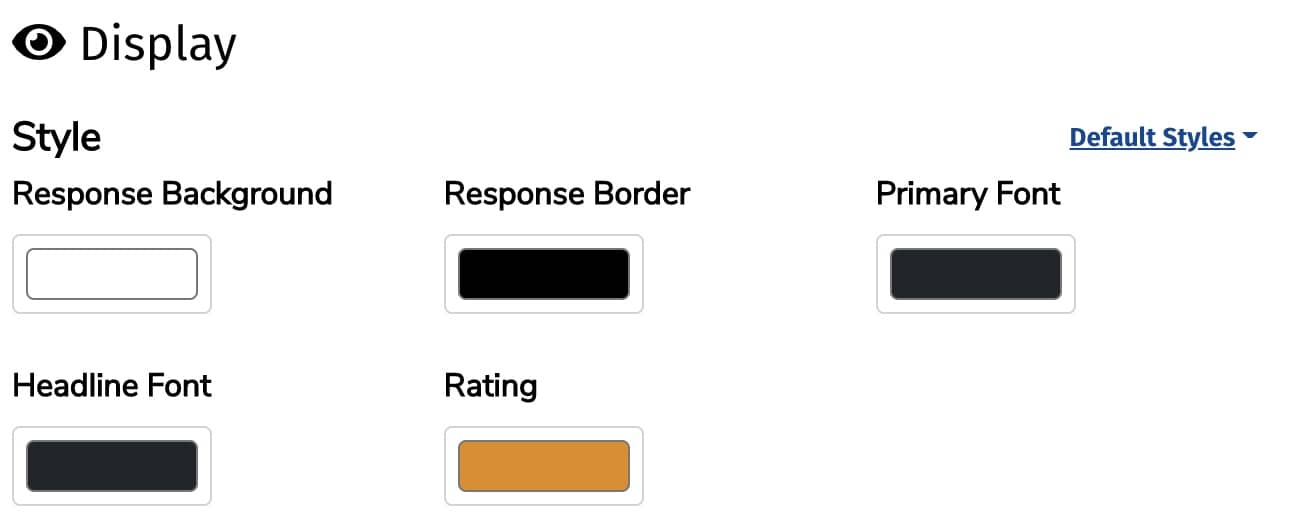
Colors you can change:
- Response Background
- Response Border
- Primary Font
- Headline Font
- Rating
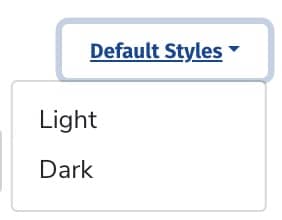
We also have two default styles available via the Default Styles dropdown - Light and Dark.
Display Fields
Choose what information you would like to include in your widget.
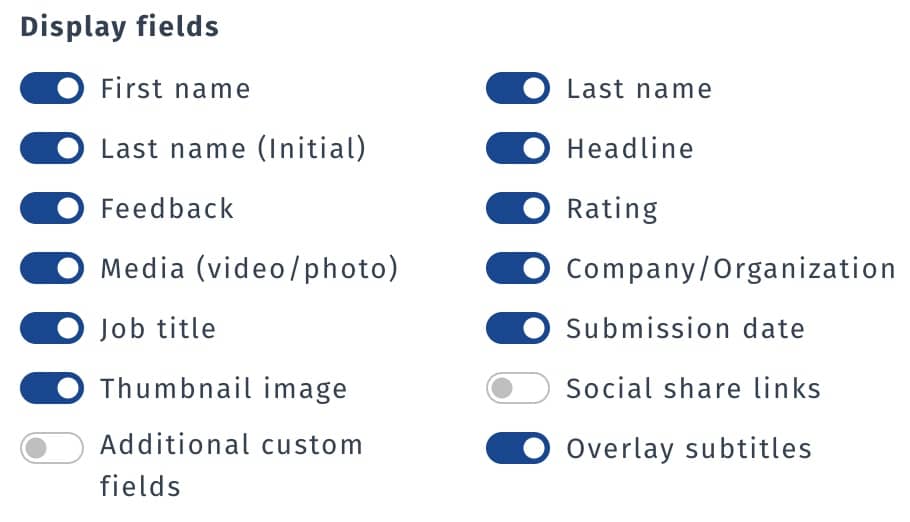
Available options:
- First Name
- Last Name
- Last Name (Initial)
- Headline
- Feedback
- Rating
- Media (video / photo)
- Company / Organization
- Job Title
- Submission Date
- Thumbnail (Preview) Image
- Social share links
- Additional custom fields
- Overlay subtitles
Order By
You can choose the order your responses are shown in.

Available options:
- Submission Date (most recent first)
- Rating (highest first)
- Weight (lightest first)
- Weight {heaviest first}
- Has Video
- Has Photo
- Random
Filters
Forms
Display responses from only a certain form or forms.

Locations
Display responses associated with a certain location.

Staff
Display responses associated with a certain staff member.

Sentiment
Negative and/or passive responses can be filtered out.

Options:
- All
- Promotors Only
- Promotors and Passives
Submission Date
Show responses collected within a certain timeframe.

Options:
- Anytime
- Last 14 Days
- Last 30 Days
- Last 90 Days
- Last 12 Months
Consent
We recommend only showing responses if the submitter has given you permission.

Options:
- All (including no consent)
- Full consent received
- Partial consent received
- Full or partial consent received
Media
Only show responses that have a certain media type.

Options:
- All (including no media)
- Any media (video, photo, or thumbnail)
- Only videos
- Only photos/thumbnails
- None (does not have a video, photo, or thumbnail)
Tags
Tags allow you to segment your responses. Use this option to only show responses with certain tags.

Max # of Responses to Show
Choose how many responses to show. The maximum allowed number is 100.

One tool with everything you need to leverage social proof to grow your business.
Meet the companies collecting video testimonials with Boast


Chicago Helicopter Experience Case Study

CommonSense American Case Study

Consulting Success Case Study

Family Chiropractic Center for Wellness Case Study

GoForClose Case Study

Growth Marketing Pro Case Study

National Grid Case Study

North Face Endurance Challenge Case Study

OneTrust Home Loans Case Study

Pure Energy Window Company Case Study

Republican Voters Against Trump Case Study

Savvy + Co Real Estate Case Study

Sedera Case Study

Seth Godin Case Study

Sonic Relief Case Study

Vivir al Máximo Case Study
Who Uses Boast?
Boast was originally designed to help B2B companies improve their processes for collecting testimonials and showcasing them on their websites, but it didn’t take long to realize that the Boast apps have far more potential. Check out some of the ways people are using below.

Agencies

Real Estate

Health & Wellness

Software Companies

Creators & Consultants

Non-profit, Association & Advocacy

Financial Services